 Clipboard
Press Super+Shift+F, type, press Enter.
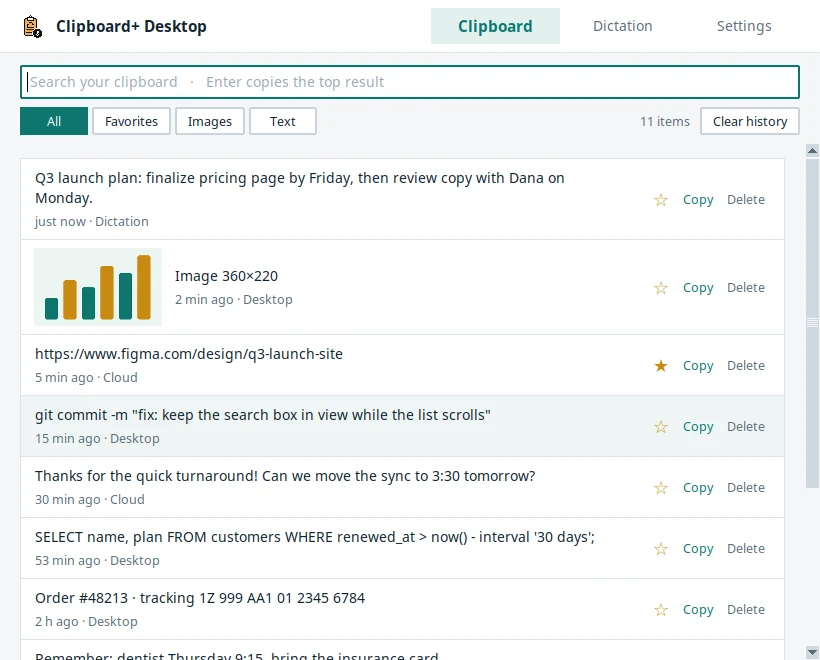
Everything you copied, newest first, one search away. Enter copies the top match back.
- Text, links and images
- Favorites and filters
- Skips what password managers mark as secret
- Pause capture any time
Clipboard+ Desktop keeps a searchable history of everything you copy and types what you say into any app. It works on its own, free and private. Sign in and it syncs with the Clipboard+ extension, the web app and your other computers.
It lives in your menu bar, system tray or top bar and starts when you log in. Turn on either tool, or both.
Everything you copied, newest first, one search away. Enter copies the top match back.
Your words are ready to paste in any app, and saved in your history too.
Already use the Clipboard+ extension? Desktop fills in everything the browser can't see. Sign in to both with the same account, and whatever you copy anywhere shows up in both.
Example: copy a tracking number in your email app, then paste it into a web form from the extension's widget. No retyping.
Clipboard+ Desktop never needs an account. Connect one when you want the same history in the extension, the web app and on your other computers.
Open a terminal, paste the command for your system and press Enter. It installs only what's missing, then opens the app.
Clipboard+ Desktop is for computers. Open this page on your Mac, Windows or Linux computer to install it. On your phone, use the iOS app or the Android beta.
The command downloads and runs the installer from the address shown; open that address first if you'd like to read it.
Your desktop history joins the one you already have in the extension and web app.
Open your Account pageNo. Clipboard+ Desktop works fully on its own: your history stays on your computer, offline. Sign in only if you want it synced with the extension, the web app and your other computers.
Text and links. Copied images stay on the computer they came from, and dictation audio is never uploaded.
Yes. On-device transcription costs nothing. Only if you choose an external transcription service such as OpenAI or Groq might that service charge you.
macOS, 64-bit Windows, and Linux (Debian, Ubuntu, Fedora, Arch and openSUSE, including GNOME on Wayland). Linux is the most tested; macOS and Windows support is newer.
Choose Quit from its icon and turn off Open at Login in the same menu. For a full removal, email support@apercallc.com and we'll walk you through it.